SFTP Configuration
Automated imports are driven by a file being uploaded to WCONLINE’s SFTP servers. Most campus SIS offer a way to export and upload a file through SFTP on a scheduled basis.
To access the SFTP Configuration page:
- Go to Global System Settings.
- Select Area Tools in the upper right-hand corner of the screen.
- Choose Import & Export Data.
- Choose SFTP Configuration in the upper right-hand corner.
Import Options
Section titled “Import Options”We offer three different import file options:
- Clients - This should be the full list of students for your campus. It contains information like their email address, first and last name, and any other information your WCONLINE administrator collects during registration. If you previously used Import Clients, this is the same information.
- Enrollments - This should be a full list of each student with their enrolled courses. It should contain at least an email address and course code but may include additional information like course title, department, instructor name, section, and term.
- Courses - If your administrator does not want to use enrollments, you can instead provide a full list of active courses. It must contain a course code but may also include a course title, department, and kind.
Enrollments and courses should always be the full list on every import. Anything missing from the file is treated as no longer current: WCONLINE removes those enrollments and deactivates those courses.
Clients will always be imported before enrollments as a client must exist for the enrollments to be mapped correctly.
Note: You may only choose to import enrollments or courses, not both. This is because enrollments inherently contain the full course list already.
CSV File Specifications and Templates
Section titled “CSV File Specifications and Templates”Each file upload should be a UTF-8 CSV file with a header row containing the template’s columns (you may omit any you are not including in your export) and quote any values containing commas.
WCONLINE provides sample templates for every import file type. These are available as links under each manual import wizard, on the dropdown button for each type on the main page, and in the SFTP configuration’s table itself. You may also use an export of your site’s existing data (available from the same dropdown button or in the manual import wizard).
Because each WCONLINE site may customize their list of registration questions, we can’t provide a template for the clients file in our help manual. Please download the template for it from one of the locations outlined above for your site.
Templates for enrollments and courses can be found below:
Enrollments
| Course Code | Course Title | Department | Term | Instructor Name | Section | |
|---|---|---|---|---|---|---|
| jsmith@example.edu | ENGL 101 | Composition I | ENGL | Fall 2026 | Alex Rivera | 001 |
| jsmith@example.edu | MATH 120 | College Algebra | MATH | Fall 2026 | Dana Wu | 004 |
Email,Course Code,Course Title,Department,Term,Instructor Name,Sectionjsmith@example.edu,ENGL 101,Composition I,ENGL,Fall 2026,Alex Rivera,001jsmith@example.edu,MATH 120,College Algebra,MATH,Fall 2026,Dana Wu,004Courses
| Course Code | Course Title | Department | Kind |
|---|---|---|---|
| ENGL 101 | Composition I | ENGL | Course |
| MATH 120 | College Algebra | MATH | Course |
| Resume Writing | Subject |
Course Code,Course Title,Department,KindENGL 101,Composition I,ENGL,CourseMATH 120,College Algebra,MATH,CourseResume Writing,,,SubjectFile Name Conventions for SFTP Uploads
Section titled “File Name Conventions for SFTP Uploads”The file being uploaded should match the file option’s name as a CSV file and be uploaded in the root folder of the SFTP server. It may optionally include a separator (dash, underscore or period) with additional text if you want to include information like the date:
| File option | Valid file names ✅ | Invalid file names ❌ | Why it is invalid |
|---|---|---|---|
| Clients | clients.csv | client.csv | Singular |
clients-2026-11-23.csv | clients2026.csv | No separator after the name | |
clients_fall2026.csv | my-clients.csv | Does not start with the option name | |
clients.export.csv | clients.xlsx | Not a CSV file | |
| Enrollments | enrollments.csv | enrollment.csv | Singular |
enrollments-2026-11-23.csv | enrollments2026.csv | No separator after the name | |
enrollments_fall2026.csv | my-enrollments.csv | Does not start with the option name | |
enrollments.export.csv | enrollments.xlsx | Not a CSV file | |
| Courses | courses.csv | course.csv | Singular |
courses-2026-11-23.csv | courses2026.csv | No separator after the name | |
courses_fall2026.csv | my-courses.csv | Does not start with the option name | |
courses.export.csv | courses.xlsx | Not a CSV file |
The casing of the file name does not matter. Because SFTP clients vary in the way they upload files, we allow different temporary extensions (.filepart, .partial, .tmp, .cyberducktemp) but expect that the client will rename the file to match the expected name when complete. A file’s max size is 100 MB.
Imports occur approximately once per hour. During setup and testing, you can use the Import Now button to trigger an immediate import instead of having to wait for the next hourly sweep.
Enabling SFTP and Selecting the Import Options
Section titled “Enabling SFTP and Selecting the Import Options”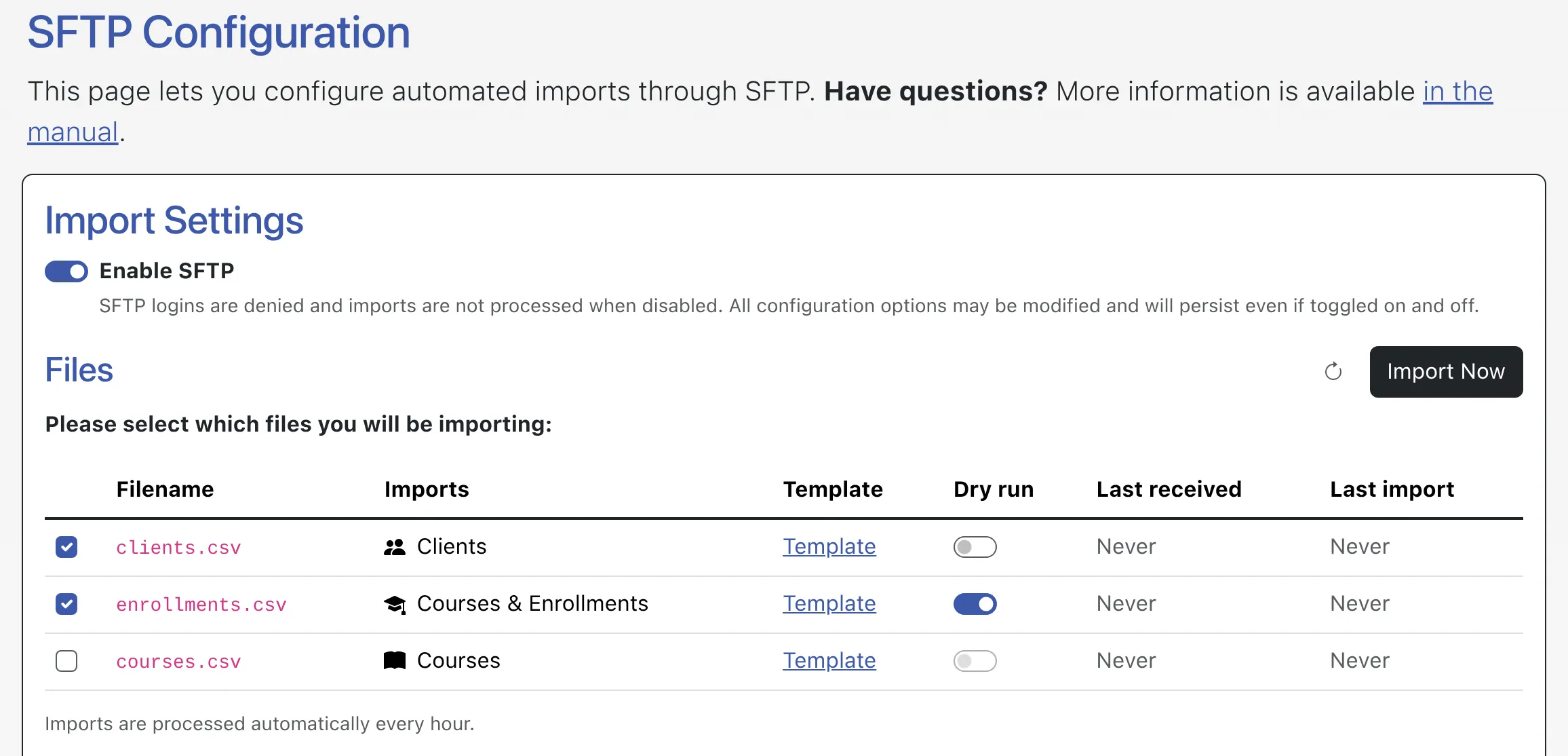
SFTP is disabled by default, so you must toggle it on when you are ready to use it. You are free to modify the configuration and options independently from enabling and disabling it as a whole.
The files table lists each import option. You must select which imports you will be providing. The dry run toggle can be set on a per-option basis and is helpful for testing your automated imports without actually executing the import and modifying the site’s data. After a dry run is processed, the file’s row shows “Awaiting review” with a link to review the results in the import wizard.
Allowed IP Addresses and Notification Emails
Section titled “Allowed IP Addresses and Notification Emails”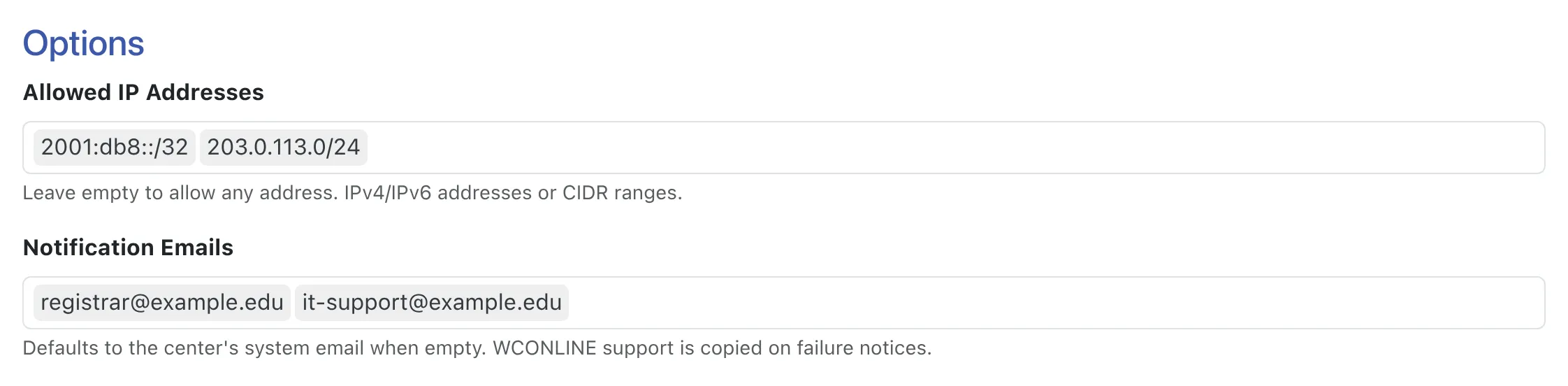
You may limit connections to the SFTP server by any IP addresses you specify. This is optional and supports IPv4 and IPv6 CIDR ranges.
When an import failure occurs, we will send a notification email to the email addresses configured under the Notification Emails field. By default, this is the center’s system email. You may wish to add an IT monitored email address here to be notified of failures.
SFTP Connection Information and Credentials
Section titled “SFTP Connection Information and Credentials”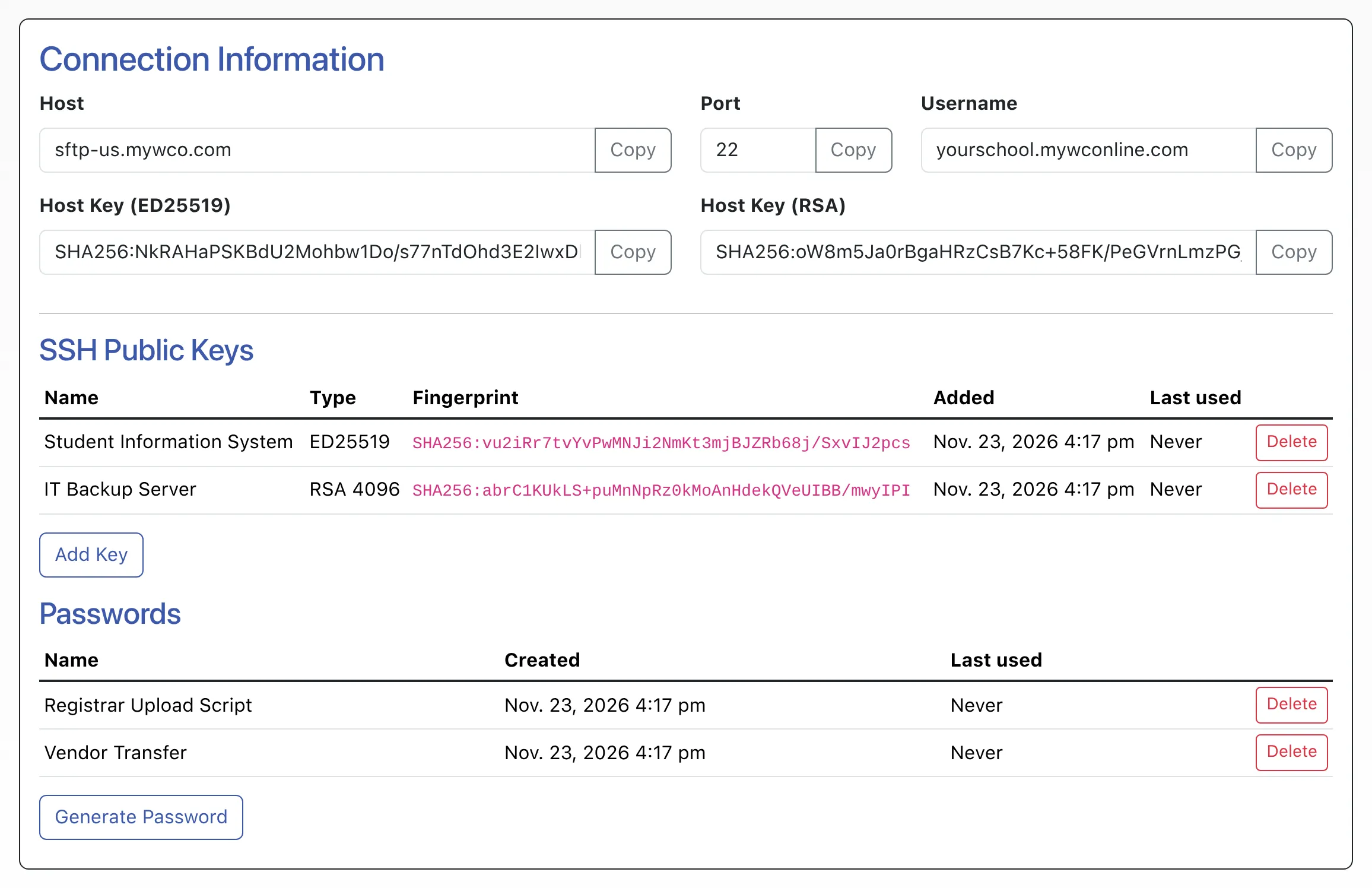
The top section of the Connection Information panel provides the SFTP connection information your SIS or SFTP client will use to connect to our SFTP servers. We recommend verifying and pinning the provided host keys for our servers to be fully secure.
We recommend using public key authentication if your SIS or SFTP client supports it. You may add up to 10 public keys in OpenSSH, PEM or PuTTY (SSH2) public key formats. RSA keys must be at least 2048 bits.
If you prefer or must use password authentication, you may generate up to 10 passwords.
Each public key and password may connect to our SFTP servers and will be tracked based on its last use. If you ever need to rotate or remove a public key or password, you may delete it using the delete button.