Step 2: Assign Staff/Resources to Courses
Once your courses have been imported, you can assign them to individual staff members. A staff member’s assigned courses decide which students can find them when booking by course. You can assign one course at a time, pick several at once from your course catalog, or make a staff member available for every course.
There are two main ways to assign courses or subjects to staff and resources in WCONLINE: through the individual staff profile, or directly through the course catalog.
Option 1: Assign Courses From a Staff Profile
Section titled “Option 1: Assign Courses From a Staff Profile”- Go to Staff and Resource Management.
- Choose a staff member.
- Open Options and select Edit Staff or Resource.

- Scroll down to the area titled Courses. You have a few options here to choose from.

Assigning a Single Course
Section titled “Assigning a Single Course”Use this option when you want to add one specific course to a staff member.
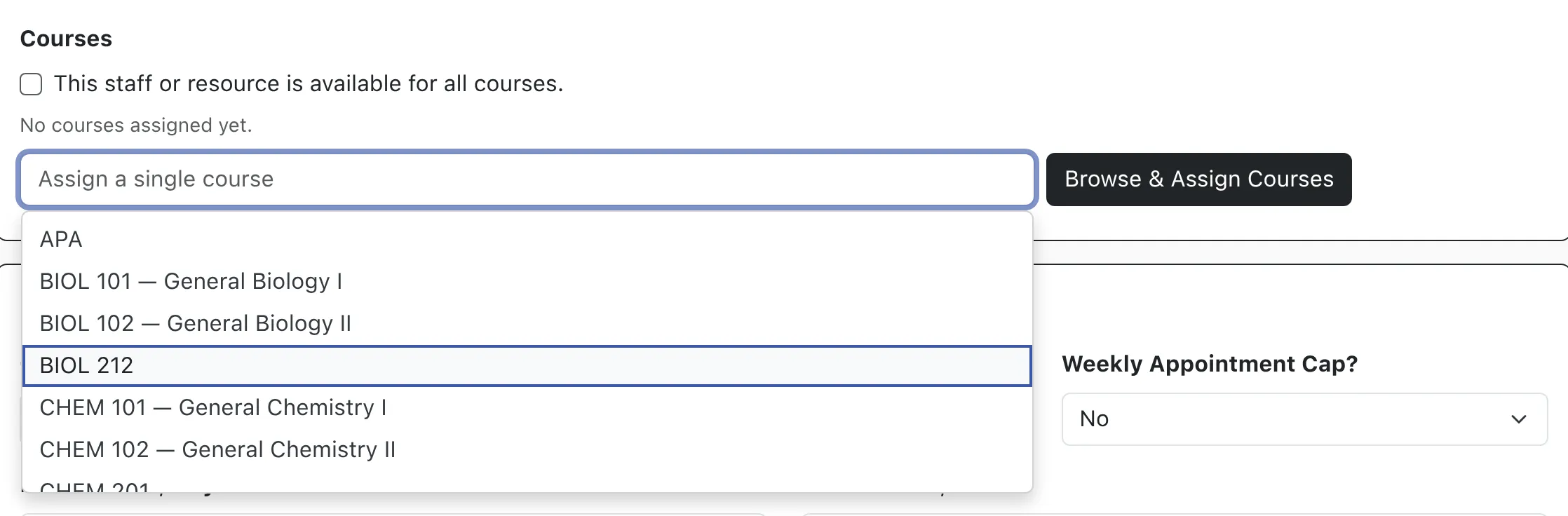
- In the Courses area, type the course name in the Assign a single course box.
- Select the course when it appears in the results. The course is added to the staff member’s list.
Assigning Several Courses From the Course Catalog
Section titled “Assigning Several Courses From the Course Catalog”Use this option when a staff member supports many courses. You can pick several courses at the same time instead of adding them one by one.
- In the Courses area, select Browse & Assign Courses. Your course catalog opens.
- Select each course you want to assign to this staff member.
- Close the course catalog. The courses you selected now appear in the staff member’s Courses area.

Important: Assigning courses does not save them on its own. After you assign courses with either option, scroll to the bottom of the page and select Save Changes. If you leave the page without saving, the assignments are lost.
Once saved, the staff member’s assigned courses are listed in the Courses area.
Making a Staff Member Available for All Courses
Section titled “Making a Staff Member Available for All Courses”In the Courses area, there is also a checkbox that makes the staff member or resource available for all courses. When it is checked, the staff member supports every course, plus any custom options you have set up, such as Resume Writing.
- In the Courses area, check the box to make the staff member or resource available for all courses.
- Scroll to the bottom of the page and select Save Changes.

When to use it: Most writing centers should check this box. Writing center staff are usually generalists who work across disciplines. Students simply choose their own course from their course list, or one of the other options you’ve set up.
Tip: To offer custom options such as Thesis/Dissertation Writing, create them in your course catalog. They then appear alongside students’ enrolled courses.
Option 2: Assign Courses From the Course Catalog
Section titled “Option 2: Assign Courses From the Course Catalog”The second way to assign courses to staff members is to go directly to the course catalog instead of the staff member’s profile.
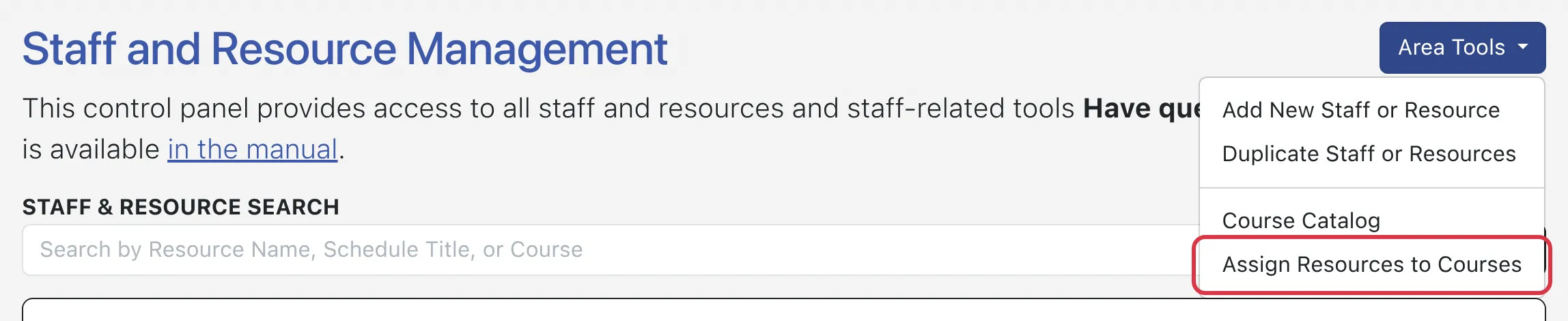
- Go to Staff and Resource Management
- Select Area Tools
- Choose Assign Resources to Courses.
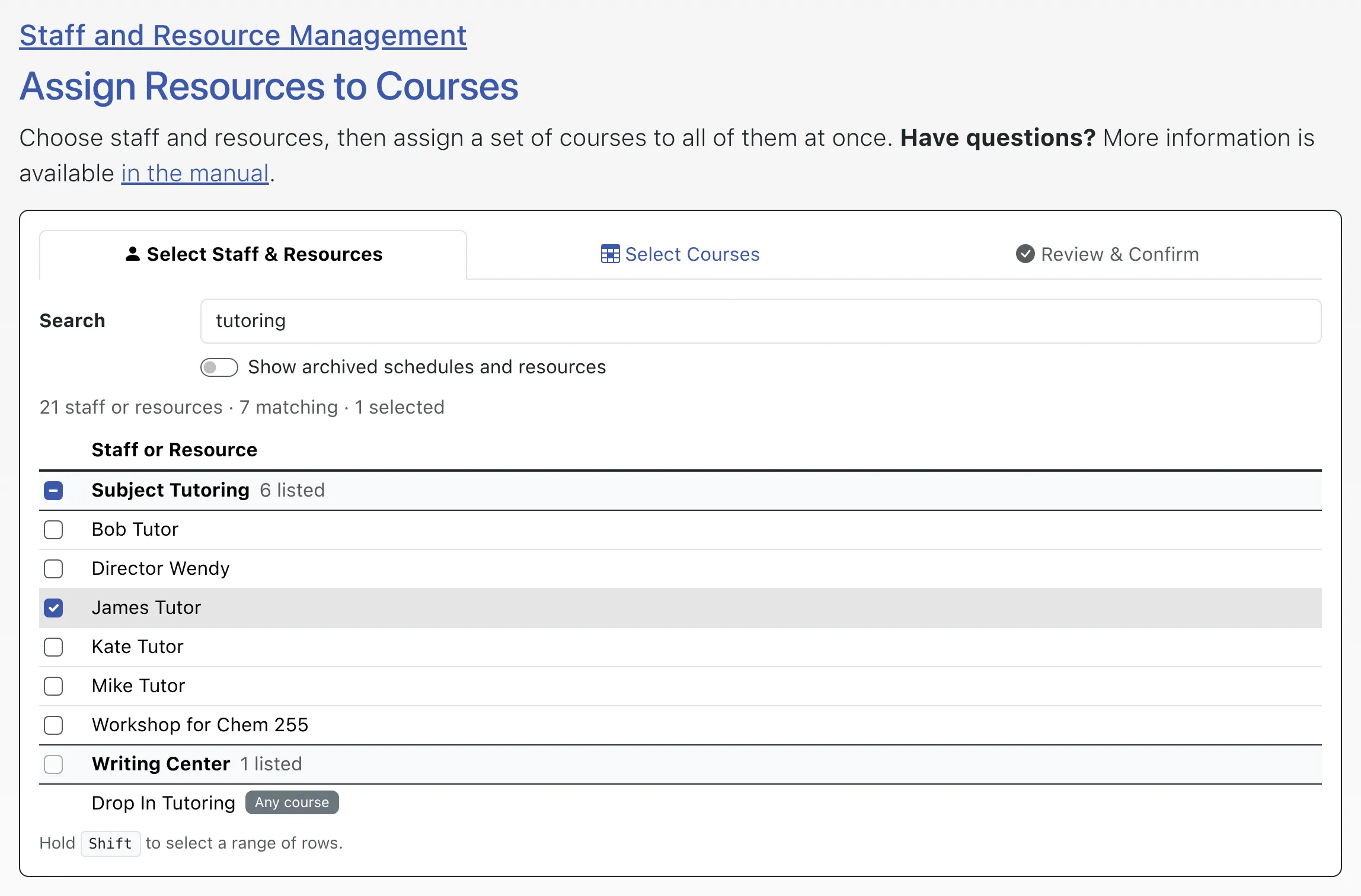
- Select the staff member or members you would like to assign courses to.
- Select the courses to assign to the selected staff member(s). You can filter by department to narrow down your results.
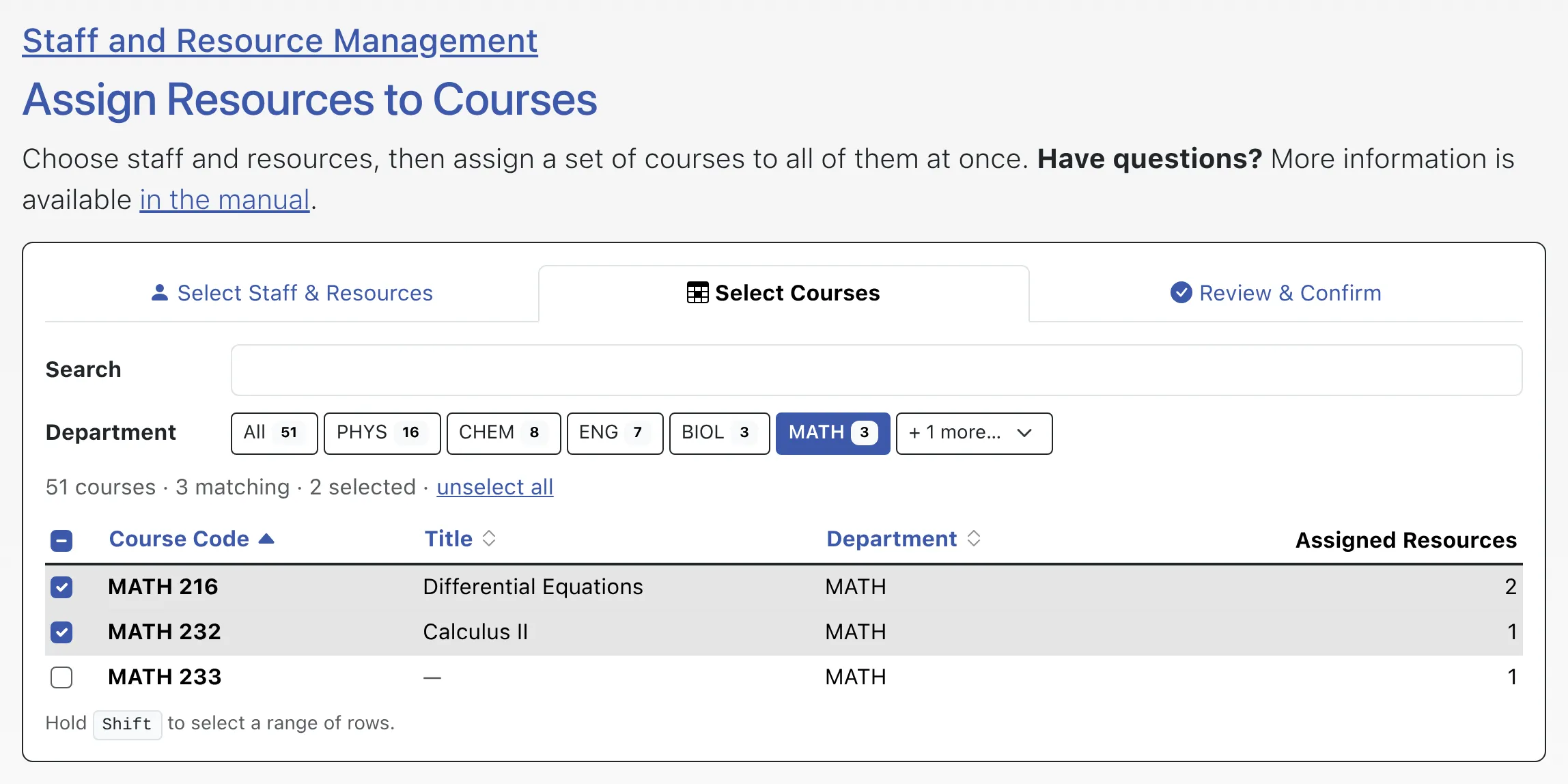
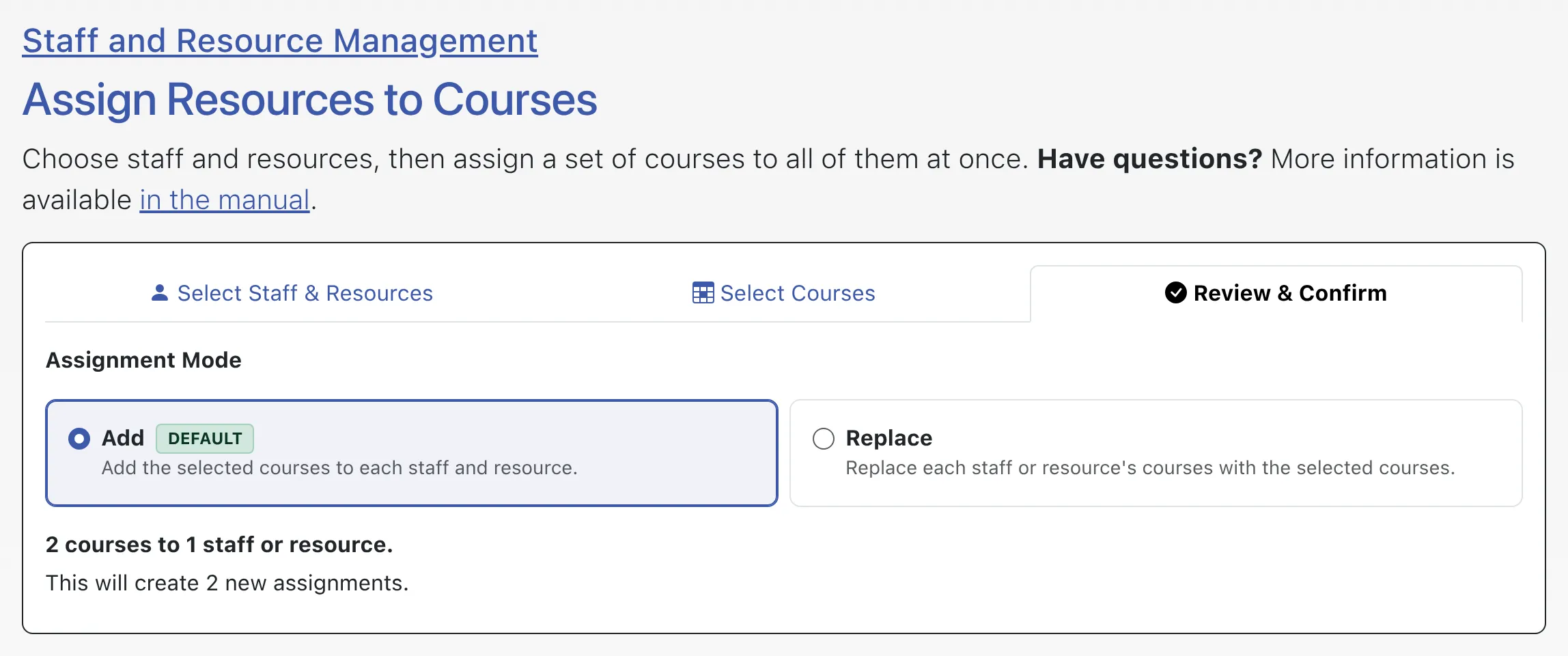
- Decide whether to add the selected courses to the staff profile (which is generally what you need when assigning courses to a staff member for the first time) or to replace the existing courses on their profile.